


Samsung Notes
4.8104.27K Reviews
App Specs
- Version
- Varies with Device
- Updated On
- License
- Free
- Downloads
- 1,000,000,000+
- Developer
- Samsung Electronics Co., Ltd.
- Categories
- Productivity
- Platform
- Android
Screenshots

 Analysis by AppCompare
If you’re opening Samsung Notes for the first time, I’d treat it as a place to collect useful thoughts rather than a notebook you need to organize perfectly from day one. Start with one note you’ll genuinely use, such as a shopping list or a record of questions for an appointment. That small first win makes it easier to see whether its mix of typing, handwriting and attachments fits the way you work.
What to expect from a daily note-taking app
Samsung Notes is a free productivity app from Samsung Electronics Co., Ltd., and its central appeal is that different kinds of notes can live together. You can type a plan, write by hand, sketch an idea or keep a recording with related notes. I find that more practical than splitting quick thoughts across a text editor, a drawing app and a separate recorder.
Its popularity is considerable: it has a 4.8 average from around 14 million ratings and over 1 billion installs. Those figures suggest that many people find a use for it, but they don’t guarantee it will suit every device or workflow. The app is rated for Everyone, and it has been available since August 15, 2016. I’d recommend it most readily to someone who wants a flexible personal notebook, especially if they already use Samsung devices.
The first decision is less about settings and more about what you want the app to replace. If you mainly need a quick, searchable place for everyday reminders, it can be a comfortable home for them. If you need a team knowledge base with carefully managed access and structured project processes, a dedicated collaboration tool may be a better fit. Notes can be shared and worked on with others, but I wouldn’t assume that makes this a full substitute for every workplace system.
Set up a simple starting point
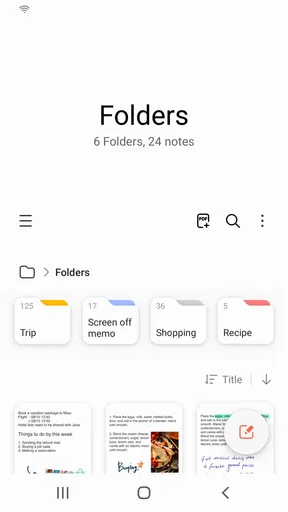
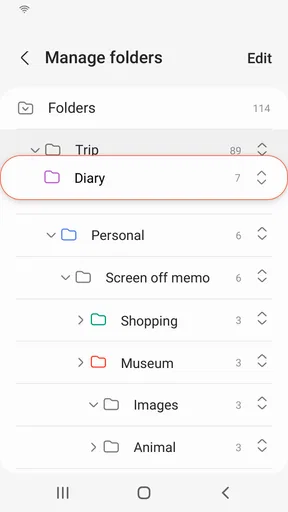
When you first open it, resist the urge to build a complicated folder structure. Make a short note, give it a clear title, and try the organization tools only after you have a few items to sort. A small set of folders or color choices is usually easier to maintain than a detailed system that you have to remember while you’re busy.
If you use more than one Samsung device, syncing can make the same notes available across that device group. I’d check that your notes are appearing where you expect before relying on them for something time-sensitive. The Microsoft OneNote connection can also help if your routine crosses into Microsoft services, but it’s worth deciding which app is the main home for each kind of note so you don’t end up unsure where you saved something.
For a first test, create a note called “This week,” add a few short tasks, and put the most important one at the top. Then close the app and return to see whether the layout and organization feel natural. This simple check tells you more than spending several minutes adjusting a theme before you know how you’ll use the app.
Worth Reading Before You Choose

Baby Panda World Brings Quick Play to Modern Phones, but Its Game Library Feels Busy

ESPN’s Live Game View Makes Following Close Games Easier

QuizzLand Review: A Good Fit for Short Trivia Breaks, Not Every Player

Basketball Stars: Multiplayer Is Fast, but Can It Recover When Matches Go Wrong?

WEBTOON Turns Phone Updates Into a Better Reading Routine

Link to Windows Runs on Shared Habits, Not Social Feeds
Your first useful note, then a better workflow
A realistic everyday use is preparing for a doctor’s appointment. Before you leave, write down the questions you want to ask, add any details you need to remember, and keep the note easy to find. Afterward, you can add a brief summary in the same place rather than trying to reconstruct the conversation from scattered reminders. For a meeting, the same approach works with typed points and a recording attached to the relevant note.
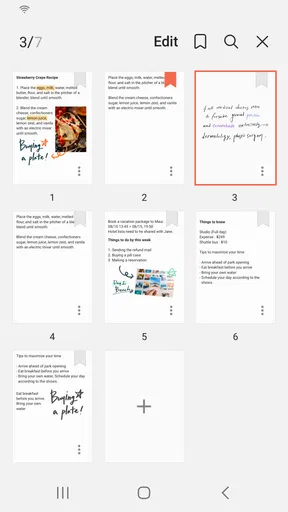
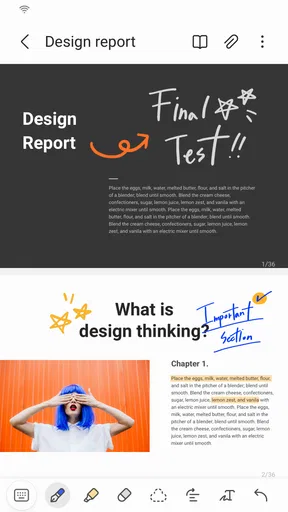
Handwriting is another good reason to give the app a proper trial. If you have a compatible stylus and enjoy writing by hand, you can capture an idea in its original form and use recognition to turn handwriting into typed text. A useful tip is to keep the original handwritten version when the exact layout matters, then use converted text when you want to search or reuse the wording. Recognition can save retyping, but it is not a reason to assume every handwritten page will convert perfectly.
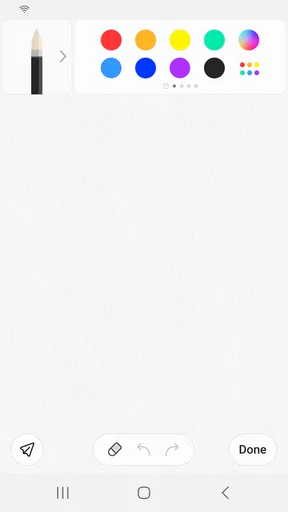
For sketches, diagrams and quick visual explanations, drawing directly beside written notes can be faster than moving between apps. That strength comes with a trade-off: a free-form page may be less tidy than a deliberately designed document. I’d use it for a rough plan or a visual reminder, then move the material into a presentation or a polished document if other people need a finished result.
Where it fits—and where it can frustrate
Compared with a basic notes app, Samsung Notes gives you more ways to capture an idea in one place, particularly when handwriting, drawing or recordings matter. Compared with a document editor, it feels better suited to collecting and revisiting working notes than to producing a final, formatted report. Compared with a shared project workspace, it is a lighter option: the collaboration can be useful for notes, but I would not choose it as the sole home for a team’s tasks, decisions and long-term reference material.
The strongest fit is a student keeping class notes, a person who thinks with a pen, or anyone who wants lists and informal plans close at hand. Someone who mostly types plain text and needs to move notes freely among a wide variety of devices may prefer a service built around broad cross-platform access. Likewise, if you need strict structure, advanced publishing layouts or a dependable shared workspace for a group, choose a tool designed around that need instead of trying to make every note app do everything.
Search and folders are most helpful when you give notes names that describe their contents. “Meeting with Alex” is easier to find later than “Notes,” even if you remember the date. I also like keeping one note for an ongoing topic, such as a home project, instead of making a new note for every small update. That reduces duplication, though it can make a long note harder to scan; headings or short labels inside the note help keep it readable.
Getting comfortable with the details
One common point of confusion is the difference between having a note on a device and having it available elsewhere. If you are depending on a note across devices, check the sync arrangement and confirm that the latest edit has appeared before leaving the original device behind. I would not treat a cross-device workflow as proven until I had tested it with an ordinary note first.
Voice recordings are handy when you need context beyond a few typed words, but they also make a note less convenient to skim. I’d use them selectively: attach a recording when listening again matters, and write a short title or summary so you can tell why it is there without replaying everything. For a quick reminder, a sentence is usually faster to revisit than audio.
There are also small organizational trade-offs. Color and folders can make a growing collection easier to browse, but too many categories create extra decisions every time you save something. I’d begin with a few broad destinations—work, personal and study, for example—and only split one when you repeatedly struggle to find the right note. A search-friendly title is often more valuable than a finely tuned filing system.
Samsung Notes has 101K written reviews, but I’d still judge it by a straightforward test: can you capture something quickly, find it again, and use it on the devices you actually rely on? If yes, its combination of typed text, handwriting, sketches and recordings can make it a dependable everyday notebook. If one of those steps repeatedly gets in your way, there’s no need to force it; a simpler notes app or a more specialized collaboration tool may serve you better.
Getting to Know Samsung Notes
Samsung Notes is more than just a note-taking app; it's a full-fledged productivity tool. Available on both Android and iOS, it's perfect for anyone who needs to keep their thoughts organized, whether you're a student, a professional, or just someone who loves keeping everything neat and tidy.
The first time you open the app, you'll be greeted with a clean, intuitive interface. It's like walking into a well-organized office space—a breath of fresh air compared to some cluttered note apps out there. You can start creating notes right away, and let me tell you, it’s as easy as pie.
Features That Stand Out
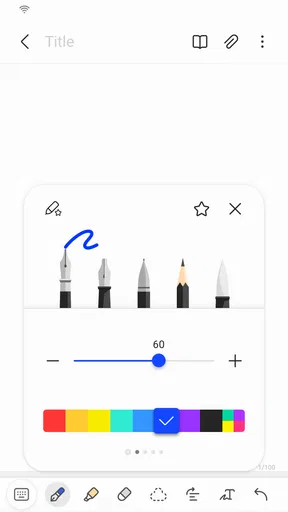
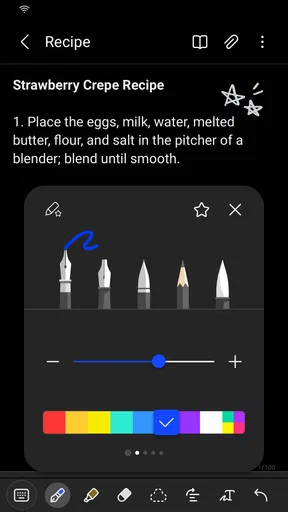
One of the coolest features of Samsung Notes is its handwriting recognition. If you're someone who enjoys the feel of a pen in hand, you'll love this. You can scribble down your notes, and the app will convert them into typed text. It’s magic! Plus, for artists, there’s a whole palette of brushes and pens to choose from, so you can sketch right in the app.
Ever tried to attach a voice recording to a note? With Samsung Notes, you can do just that. It's a lifesaver for those moments when typing just doesn't cut it. Record a lecture, meeting, or your brainstorming session, and attach it directly to your notes.
Organizing your notes is a breeze. You can categorize them with different colors and folders, making it super simple to find what you're looking for later. And don’t even get me started on the search function. It's like having a personal assistant who knows exactly where everything is.
Integration and Syncing
Now, let’s talk about one of the most critical aspects of any productivity app: syncing. With Samsung Notes, you can seamlessly sync your notes across all your Samsung devices. Whether you're using your phone, tablet, or even a Samsung laptop, your notes are always up to date. It’s like having your entire brain in your pocket, ready to pull out whenever you need it.
For those who use Microsoft services, Samsung Notes also offers integration with Microsoft OneNote. This is a game-changer for anyone who needs to access their notes across different platforms and services.
User Experience
What I love about Samsung Notes is how user-friendly it is. Navigating through the app feels natural, and everything is where you'd expect it to be. The app doesn’t bombard you with unnecessary features or ads, so you can focus on what truly matters—your notes.
And hey, if you're the type who loves to customize, Samsung Notes has you covered. You can choose from different themes, tweak the layout, and make the app truly yours. It’s like decorating your own digital workspace.
Final Thoughts
In a world filled with countless note-taking apps, Samsung Notes stands out for its simplicity, functionality, and versatility. It's perfect for anyone who needs to keep their thoughts organized and accessible. Whether you're jotting down a grocery list or drafting a novel, this app has got your back.
So, next time you find yourself reaching for a sticky note, remember that Samsung Notes is just a tap away. Dive in, explore its features, and discover how it can make your life a little more organized. Trust me, once you start using it, you'll wonder how you ever managed without it.
Pros
- Seamless integration with Samsung devices.
- Supports handwriting and drawing with S Pen.
- Offers a variety of note-taking templates.
- Syncs effortlessly across Samsung Cloud.
- Rich text formatting options available.
Cons
- Limited features on non-Samsung devices.
- No real-time collaboration feature.
- Export options are somewhat restricted.
- Interface can be cluttered for some users.
- Requires Samsung account for full features.
FAQs for Samsung Notes
What features does Samsung Notes offer for note-taking?
Samsung Notes provides a comprehensive suite of features for note-taking, including text notes, handwriting with S Pen support, and voice memos. Users can also integrate images, audio, and sketches, making it versatile for various needs. The app also offers organization tools like folders and tags, which help in managing and retrieving notes efficiently.
Is Samsung Notes compatible with non-Samsung devices?
While Samsung Notes is optimized for Samsung devices, it is available on the Google Play Store and can be installed on most Android devices. However, some features, such as S Pen functionality, may be limited or unavailable on non-Samsung devices. Users should check compatibility before downloading to ensure full functionality.
Does Samsung Notes support cloud synchronization?
Yes, Samsung Notes supports cloud synchronization through Samsung Cloud, allowing users to access their notes across multiple devices. This feature ensures that notes are backed up and easily retrievable if you switch devices. Users need to sign in with their Samsung account and enable sync settings to utilize this feature.
Can I export or share my notes from Samsung Notes?
Samsung Notes allows users to export notes in various formats such as PDF, Microsoft Word, and image files. This makes it easy to share notes via email or other apps. Additionally, users can directly share notes through social media or messaging platforms, facilitating seamless collaboration and communication.
Are there any security features in Samsung Notes to protect my data?
Samsung Notes offers several security features to protect user data, including password protection for individual notes. Users can also use biometric security options like fingerprint or face recognition to secure access to the app. These features ensure that sensitive information remains confidential and protected from unauthorized access.


